You draw a box around the invoice total, apply the template to the rest of the folder, and the fourth document comes back with the wrong number or with no value at all. Nothing is broken, but the total has moved.
Why the value moves
A PDF isn't a table. There is no cell called “Total” — there is only text drawn at particular coordinates, and nothing in the file records which piece of text belongs to which field.
So when one invoice has nine line items instead of three, everything below them shifts down the page. Your box is still where you drew it, but the number is no longer inside it.
The same thing also happens for reasons that aren't visible. Right-aligned numbers are positioned by their right edge, so £45.00 and £1,245,000.00 sit in the same column but begin in quite different places. Font metrics and rounding can move text by a point or two between documents produced by the same system. The layout can look identical while the box still misses the value.
Before you start
- The PDF needs selectable text. PDFGrid has no OCR, so scanned documents and photographs won't work. If you can't select the text in a PDF reader, the tool can't read it either.
- The documents need a label that appears consistently — something like “Total”, “Invoice No.”, “Mobile” or “Due date” that sits near the value in every document, even when both of them move.
Step 1 — find a stable label
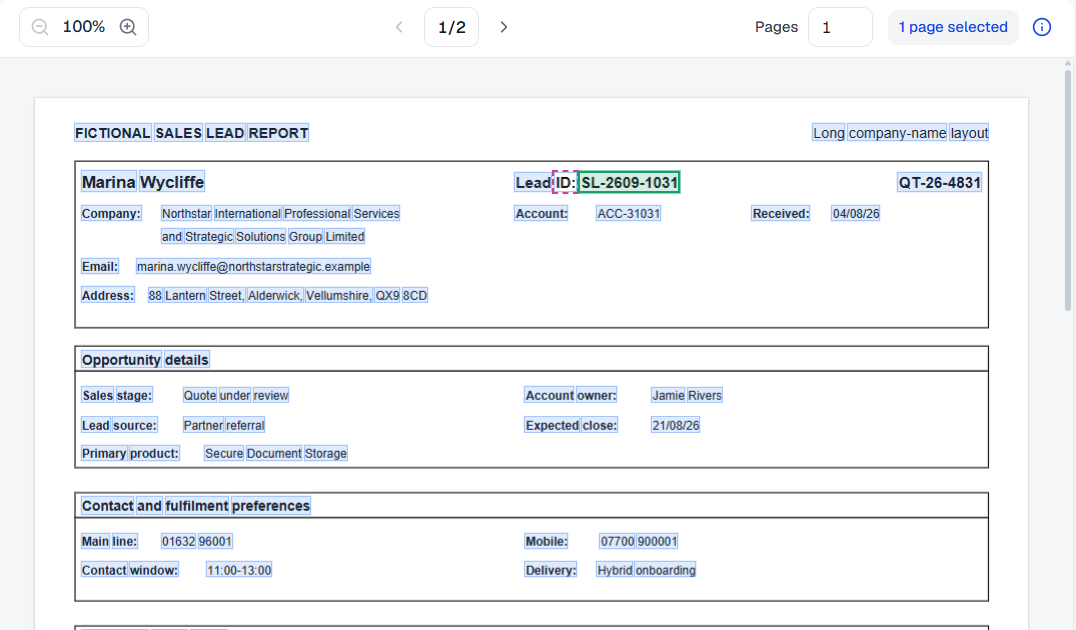
Open one document and look at the value you want. What sits next to it that also appears on every other version of this document?
The most reliable anchors are printed by the template rather than typed by a person, so field labels, column headings and section titles tend to work well. Anything that varies between documents is less reliable, such as a customer name, a date, or a reference that only appears sometimes.
If the same word appears several times on the page, make a note of it, because you'll need to tell the rule which occurrence you mean.
Step 2 — anchor the rule to the label
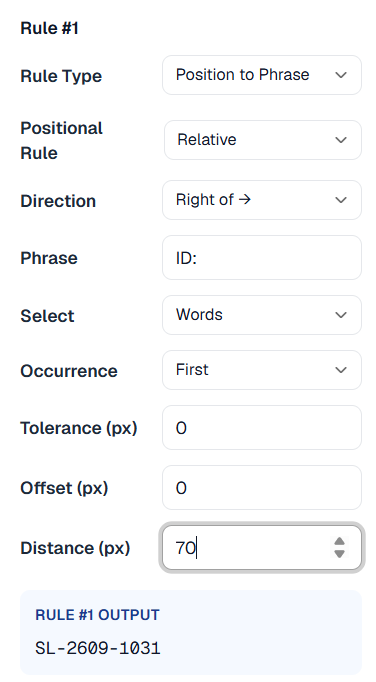
Select Add Field, then choose a rule that finds the value in relation to the label rather than at a fixed position.
There are two ways of expressing “near the label”, and the difference between them matters.
Relative to Phrase follows the document's reading order, taking whatever comes before or after the label in the text. This works well when the value reliably follows the label as you would read it aloud, such as “Lead ID: SL-2609-1031”.
Position to Phrase uses geometry instead. It finds the label, then looks in a direction from where that label actually sits on the page — below it, to its right, or in the same column. This is the better choice when reading order doesn't match the visual layout, which is common in multi-column documents and tables.
Reading order and visual position tend to agree in simple documents and to diverge in complicated ones. If a rule looks correct but returns something from elsewhere on the page, that difference is usually the reason.
Step 3 — check it against a document you didn't build it on
This step is easy to skip and it's the one that matters most.
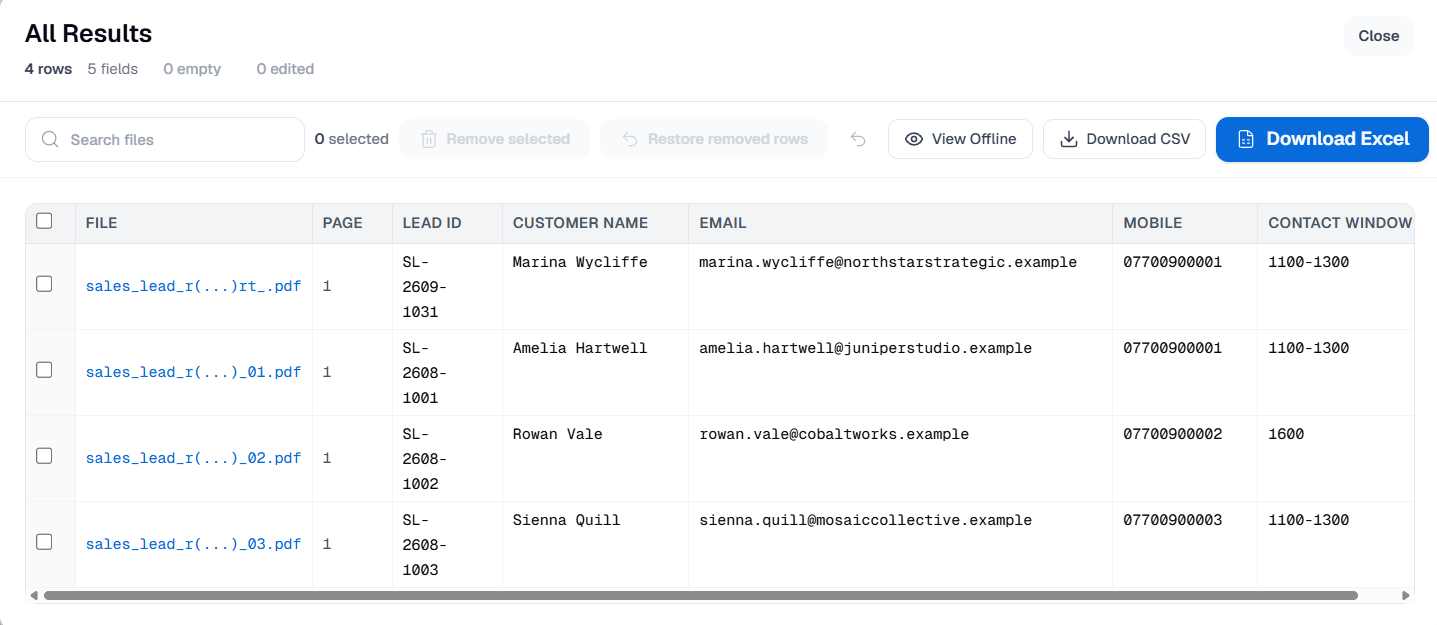
A rule will always work on the document you built it on, so the useful question is whether it works on the next one. Open a second document, ideally one where the layout is visibly different, and confirm the value is still correct.
If it isn't, the usual explanations are that the label is less consistent than you thought, or that a second occurrence of the same word is being picked up instead.
Step 4 — apply it to the rest and export
Select Apply Template to run it across the whole batch, then open View results before exporting. Every extracted value is visible, and it's worth reading through them rather than assuming they're right, particularly the first time you use a new rule.
Then select Download Excel or Download CSV. For the complete batch workflow, see how to extract data from multiple PDFs into Excel.
When anchoring doesn't help
Anchoring doesn't solve everything, and it's worth knowing where it falls short.
The label can move independently of the value. Headings are often centred while the values beneath them are right-aligned, so the two don't always shift together, and a rule anchored to the heading can still miss.
The label may appear more than once. “Total” might appear on a line item, a subtotal and the invoice total. You'll need to specify which one you mean, and if the number of occurrences varies between documents that becomes genuinely difficult.
Some values have no label at all. Where there is nothing nearby to anchor to, this technique doesn't apply and you'll need a different approach.
Scanned documents. Without OCR there is no text to find in the first place.
Try it
PDFGrid extracts specific values from text-based PDFs into Excel or CSV, entirely in your browser. Your files never leave your machine. No account is needed to try it: pdfgrid.app